Oct 10, 2007

Word Wrap Text

Word Wrap Text

The code listed below can be compiled as a class or can be added to a project. This code wraps text to a specified number of characters per line. It does this by using several api calls and a fixed width font. This method for wrapping text is much faster than any other code I have found on the internet. These are the necessary objects: one form called frmMain with txtbox on it called txtHidden, a module called modMainCode, and a class module called WordWrap


'modMainCode

Option Explicit

Public Declare Function SendMessage Lib "user32" Alias "SendMessageA" (ByVal hWnd As Long, ByVal msg As Long, ByVal wp As Long, lp As Any) As Long
Public Const EM_LINEINDEX = &HBB
Public Const EM_LINELENGTH = &HC1
Public Const EM_GETLINE = &HC4
Public Const EM_GETLINECOUNT = &HBA
Public Const EM_FMTLINES = &HC8


'frmMain

Option Explicit

Public intMaxLineLen As Integer
Private Declare Function SendMessage Lib "user32" Alias "SendMessageA" (ByVal hWnd As Long, ByVal msg As Long, ByVal wp As Long, lp As Any) As Long
Private Const EM_LINEINDEX = &HBB
Private Const EM_LINELENGTH = &HC1
Private Const EM_GETLINE = &HC4
Private Const EM_GETLINECOUNT = &HBA
Private Const EM_FMTLINES = &HC8

'************************************************************************
'This sets up the textbox so it will wrap to the correct amount of
'characters
'************************************************************************
Private Sub SetUpRTB()
Dim lngIndex As Long
Dim intLength As Integer

intLength = 0
txtHidden.MultiLine = True
txtHidden.Font.Name = "Fixedsys"
txtHidden.Text = String(500, "W")
Do Until intLength = intMaxLineLen

txtHidden.Width = txtHidden.Width + 5
lngIndex = SendMessage(txtHidden.hWnd, _
EM_LINEINDEX, 1, 0)
intLength = SendMessage(txtHidden.hWnd , _
EM_LINELENGTH, lngIndex, 0)
Loop
txtHidden = ""
txtHidden.Visible = False

End Sub


Private Sub Form_Load()
SetUpRTB
End Sub


'WordWrap Class

Option Explicit


Public Function WordWrap(strText As String, intLineLen As Integer) As String
frmMain.intMaxLineLen = intLineLen
Load frmMain
WordWrap = GetText(strText)
End Function

'*************************************************************************************
'This function wraps a string by using apis and a textbox control(txtHidden)
'located on frmmain
'*************************************************************************************
Private Function GetText(strSource As String) As String
Dim lngCounter As Long
Dim lngLinecount As Long
Dim strHolder As String
Dim strLine As String
Dim lngCurrPos As Long, lngCurrPos2 As Long
Dim lngNextLen As Long
Dim lngtxtSize As Long

Dim intLength As Integer, intPrevLength As Integer
Dim lngCount As Long
Dim lngIndex As Long
Dim strBuf As String, strBufReplace As String


lngtxtSize = 65535 / ((2 / ((frmMain.intMaxLineLen + 1) / 2)) + 1)
strHolder = Space$(10000000)

lngNextLen = lngtxtSize
lngCurrPos = 1
lngCurrPos2 = 1
Do Until lngCurrPos >= Len(strSource)
If Len(strSource) - lngCurrPos < lngtxtSize Then
lngNextLen = Len(strSource) - lngCurrPos + 1
End If
frmMain.txtHidden = Mid(strSource, lngCurrPos, lngNextLen)
SendMessage frmMain.txtHidden.hWnd, EM_FMTLINES, True, 0

lngIndex = SendMessage(frmMain.txtHidden.hWnd, _
EM_LINEINDEX, 0, 0)
intLength = SendMessage(frmMain.txtHidden.hWnd, _
EM_LINELENGTH, lngIndex, 0)

If intLength + intPrevLength > frmMain.intMaxLineLen Then
strBuf = Space$(intLength + 1)
SendMessage frmMain.txtHidden.hWnd, EM_GETLINE, 0, ByVal strBuf
strBuf = Left$(strBuf, intLength)
strBufReplace = FixBuf(strBuf, intPrevLength)
frmMain.txtHidden = Replace$(frmMain.txtHidden, strBuf, strBufReplace, , 1)
SendMessage frmMain.txtHidden.hWnd, EM_FMTLINES, True, 0
End If


lngCount = SendMessage(frmMain.txtHidden.hWnd, _
EM_GETLINECOUNT, 0, 0)
lngIndex = SendMessage(frmMain.txtHidden.hWnd, _
EM_LINEINDEX, lngCount - 1, 0)
intPrevLength = SendMessage(frmMain.txtHidden.hWnd, _
EM_LINELENGTH, lngIndex, 0)

Mid$(strHolder, lngCurrPos2, Len(frmMain.txtHidden)) = frmMain.txtHidden

lngCurrPos2 = lngCurrPos2 + Len( frmMain.txtHidden)
lngCurrPos = lngCurrPos + lngNextLen
Loop
GetText = Replace$(Trim$(strHolder), vbCr & vbCr & vbLf, vbCrLf)
End Function

'****************************************************************************
'This function ensures that the first line of the text to be conconcatonated
'does not exceed the maximum line length when concatonated to the last line
'in the main string variable
'****************************************************************************
Private Function FixBuf(ByVal strText As String, intLen As Integer) As String
Dim intMaxLen As Integer
Dim i As Integer
Dim intlstSpace As Integer

intMaxLen = frmMain.intMaxLineLen - intLen

For i = 1 To intMaxLen
If Mid$(strText, i, 1) = Space$(1) Then
intlstSpace = i
End If

Next
If intlstSpace <> 0 Then
strText = Left$(strText, intlstSpace - 1) & vbCrLf & Right$(strText, Len(strText) - intlstSpace)
Else
strText = Left$(strText, intMaxLen) & vbCrLf & Right$(strText, Len(strText) - intMaxLen)
End If
FixBuf = strText
End Function
( orignal source: http://www.mredkj.com/vbquicktakes/WordWrap.html )

Get Textbox Line Count Using SendMessage Function In user32 Library

Get Textbox Line Count Using SendMessage Function In user32 Library

Const EM_GETLINECOUNT As Integer = &HBA

Declare Function SendMessage Lib "user32" Alias "SendMessageA" _
(ByVal hwnd As IntPtr, ByVal wMsg As Integer, ByVal wParam As Integer, _
ByVal lParam As Integer) As Integer

Trace.WriteLine(SendMessage(TextBox1.Handle, EM_GETLINECOUNT, 0, 0))

Oct 9, 2007

ADO.NET Overview

Imports System
Imports System.Data
Imports System.Data.SqlClient

namespace HowTo.Samples.ADONET

public class adooverview4
public shared sub Main()
Dim myadooverview4 as adooverview4
myadooverview4 = new adooverview4()
myadooverview4.Run()
end sub

public sub Run()
' Create a new Connection and SqlDataAdapter
Dim myConnection as SqlConnection
Dim mySqlDataAdapter as SqlDataAdapter
Dim workParam as SqlParameter


myConnection = new SqlConnection("server=(local)\NetSDK;Trusted_Connection=yes;database=northwind")
mySqlDataAdapter = new SqlDataAdapter("Select * from Region", myConnection)

' Restore database to it's original condition so sample will work correctly.
Cleanup()

' Build the insert Command
mySqlDataAdapter.InsertCommand = new SqlCommand("Insert into Region (RegionID, RegionDescription) VALUES (@RegionID, @RegionDescription)", myConnection)

workParam = mySqlDataAdapter.InsertCommand.Parameters.Add ("@RegionID", SqlDbType.Int)
workParam.SourceColumn = "RegionID"
workParam.SourceVersion = DataRowVersion.Current

workParam = mySqlDataAdapter.InsertCommand.Parameters.Add("@RegionDescription", SqlDbType.NChar, 50)
workParam.SourceVersion = DataRowVersion.Current
workParam.SourceColumn = "RegionDescription"

' Build the update command
mySqlDataAdapter.UpdateCommand = new SqlCommand("Update Region Set RegionDescription = @RegionDescription WHERE RegionID = @RegionID" , myConnection)

workParam = mySqlDataAdapter.UpdateCommand.Parameters.Add ("@RegionID", SqlDbType.Int)
workParam.SourceColumn = "RegionID"
workParam.SourceVersion = DataRowVersion.Original

workParam = mySqlDataAdapter.UpdateCommand.Parameters.Add("@RegionDescription", SqlDbType.NChar, 50)
workParam.SourceVersion = DataRowVersion.Current
workParam.SourceColumn = "RegionDescription"

Dim myDataSet as DataSet
myDataSet = new DataSet()

' Set the MissingSchemaAction property to AddWithKey because Fill will not cause primary key & unique key information to be retrieved unless AddWithKey is specified.
mySqlDataAdapter.MissingSchemaAction = MissingSchemaAction.AddWithKey
mySqlDataAdapter.Fill(myDataSet, "Region")

Dim myDataRow1 as DataRow
myDataRow1 = myDataSet.Tables("Region").Rows.Find(2)
myDataRow1(1) = "Changed this region desc"

Dim myDataRow2 as DataRow
myDataRow2 = myDataSet.Tables("Region").NewRow()
myDataRow2(0) = 901
myDataRow2(1) = "A new region"
myDataSet.Tables("Region").Rows.Add(myDataRow2)

try
mySqlDataAdapter.Update(myDataSet, "Region")
Console.Write("Updating DataSet succeeded!")
catch e as Exception
Console.Write(e.ToString())
end try
end sub

public sub Cleanup()
Dim myConnection as SqlConnection = new SqlConnection("server=(local)\NetSDK;Trusted_Connection=yes;database=northwind")

try
' Restore database to it's original condition so sample will work correctly.
myConnection.Open()
Dim CleanupCommand as SqlCommand = new SqlCommand("DELETE FROM Region WHERE RegionID = '901'", myConnection)
CleanupCommand.ExecuteNonQuery()
catch e as Exception
Console.Write(e.ToString())
finally
myConnection.Close()
end try
end sub

end class

end namespace


( original source: http://samples.gotdotnet.com/quickstart/util/srcview.aspx?path=/quickstart/howto/samples/adoplus/adooverview4/adooverview4.src )

ADO .NET

ADO .NET

Most applications need data access at one point of time making it a crucial component when working with applications. Data access is making the application interact with a database, where all the data is stored. Different applications have different requirements for database access. VB .NET uses ADO .NET (Active X Data Object) as it's data access and manipulation protocol which also enables us to work with data on the Internet. Let's take a look why ADO .NET came into picture replacing ADO.

Evolution of ADO.NET

The first data access model, DAO (data access model) was created for local databases with the built-in Jet engine which had performance and functionality issues. Next came RDO (Remote Data Object) and ADO ( Active Data Object) which were designed for Client Server architectures but soon ADO took over RDO. ADO was a good architecture but as the language changes so is the technology. With ADO, all the data is contained in a recordset object which had problems when implemented on the network and penetrating firewalls. ADO was a connected data access, which means that when a connection to the database is established the connection remains open until the application is closed. Leaving the connection open for the lifetime of the application raises concerns about database security and network traffic. Also, as databases are becoming increasingly important and as they are serving more people, a connected data access model makes us think about its productivity. For example, an application with connected data access may do well when connected to two clients, the same may do poorly when connected to 10 and might be unusable when connected to 100 or more. Also, open database connections use system resources to a maximum extent making the system performance less effective.

Why ADO.NET?

To cope up with some of the problems mentioned above, ADO .NET came into existence. ADO .NET addresses the above mentioned problems by maintaining a disconnected database access model which means, when an application interacts with the database, the connection is opened to serve the request of the application and is closed as soon as the request is completed. Likewise, if a database is Updated, the connection is opened long enough to complete the Update operation and is closed. By keeping connections open for only a minimum period of time, ADO .NET conserves system resources and provides maximum security for databases and also has less impact on system performance. Also, ADO .NET when interacting with  the database uses XML and converts all the data into XML format for database related operations making them more efficient.


The ADO.NET Data Architecture

Data Access in ADO.NET relies on two components: DataSet and Data Provider.

DataSet

The dataset is a disconnected, in-memory representation of data. It can be considered as a local copy of the relevant portions of the database. The DataSet is persisted in memory and the data in it can be manipulated and updated independent of the database. When the use of this DataSet is finished, changes can be made back to the central database for updating. The data in DataSet can be loaded from any valid data source like Microsoft SQL server database, an Oracle database or from a Microsoft Access database.

Data Provider

The Data Provider is responsible for providing and maintaining the connection to the database. A DataProvider is a set of related components that work together to provide data in an efficient and performance driven manner. The .NET Framework currently comes with two DataProviders: the SQL Data Provider which is designed only to work with Microsoft's SQL Server 7.0 or later and the OleDb DataProvider which allows us to connect to other types of databases like Access and Oracle. Each DataProvider consists of the following component classes:

The Connection object which provides a connection to the database
The Command object which is used to execute a command
The DataReader object which provides a forward-only, read only, connected recordset
The DataAdapter object which populates a disconnected DataSet with data and performs update


Data access with ADO.NET can be summarized as follows:

A connection object establishes the connection for the application with the database. The command object provides direct execution of the command to the database. If the command returns more than a single value, the command object returns a DataReader to provide the data. Alternatively, the DataAdapter can be used to fill the Dataset object. The database can be updated using the command object or the DataAdapter.

ADO .NET Data Architecture

Component classes that make up the Data Providers

The Connection Object

The Connection object creates the connection to the database. Microsoft Visual Studio .NET provides two types of Connection classes: the SqlConnection object, which is designed specifically to connect to Microsoft SQL Server 7.0 or later, and the OleDbConnection object, which can provide connections to a wide range of database types like Microsoft Access and Oracle. The Connection object contains all of the information required to open a connection to the database.

The Command Object

The Command object is represented by two corresponding classes: SqlCommand and OleDbCommand. Command objects are used to execute commands to a database across a data connection. The Command objects can be used to execute stored procedures on the database, SQL commands, or return complete tables directly. Command objects provide three methods that are used to execute commands on the database:

ExecuteNonQuery: Executes commands that have no return values such as INSERT, UPDATE or DELETE
ExecuteScalar: Returns a single value from a database query
ExecuteReader: Returns a result set by way of a DataReader object


The DataReader Object

The DataReader object provides a forward-only, read-only, connected stream recordset from a database. Unlike other components of the Data Provider, DataReader objects cannot be directly instantiated. Rather, the DataReader is returned as the result of the Command object's ExecuteReader method. The SqlCommand.ExecuteReader method returns a SqlDataReader object, and the OleDbCommand.ExecuteReader method returns an OleDbDataReader object. The DataReader can provide rows of data directly to application logic when you do not need to keep the data cached in memory. Because only one row is in memory at a time, the DataReader provides the lowest overhead in terms of system performance but requires the exclusive use of an open Connection object for the lifetime of the DataReader.

The DataAdapter Object

The DataAdapter is the class at the core of ADO .NET's disconnected data access. It is essentially the middleman facilitating all communication between the database and a DataSet. The DataAdapter is used either to fill a DataTable or DataSet with data from the database with it's Fill method. After the memory-resident data has been manipulated, the DataAdapter can commit the changes to the database by calling the Update method. The DataAdapter provides four properties that represent database commands:

SelectCommand
InsertCommand
DeleteCommand
UpdateCommand

When the Update method is called, changes in the DataSet are copied back to the database and the appropriate InsertCommand, DeleteCommand, or UpdateCommand is executed.


( original source: http://www.startvbdotnet.com/ado/default.aspx )

Printing out your W2 Form using VB.NET

Printing out your W2 Form using VB.NET

This article covers a fairly practical aspect of using a computer - dealing with forms. The concepts in this article can be used to create any Form Application so that you can design forms that you can Fill Out, Open, Save, Print and Print Preview.


W2FormMG.zip


Fig 1.0-Print Preview of the W2 Form.

If you are a VB programmer, before you run out and buy that latest version of your favorite tax program, you may want to consider this useful article on form creation.  This article covers a fairly practical aspect of using a computer-Fdealing with forms.  The concepts in this article can be used to create any Form Application so that you can design forms that you can Fill Out, Open, Save, Print and Print Preview.  Below is the simple UML design of our W2 Form Filler Application:


Fig 1.1-UML Doc/View Design of W2 Form App reverse engineered using WithClass 2000.

The first step to creating the form is to scan in the Form and convert it to a .gif file.  You can also get most forms these days electronically from the .gov sites that supply them.  Once you've got the form in a .gif (or jpeg or whatever), you can apply it to your form as an image background.   Simply set the forms BackgroundImage property to the gif or jpeg file that you scanned in.  Now you are ready to set up the forms edit fields.  This form only uses TextBoxes and CheckBoxes.  The TextBoxes overlay the whitespaces for all the places you would normally fill in the form and have names that are appropriate for the particular field on the form. The property window for a TextBox is shown below:


Fig 1.2-Property window of a TextBox in the Form.

The BorderStyle for all textboxes are set to none and the background color(BackColor) is set to the color of the form. 
With Checkboxes you need to do a bit of extra work.  Since you can't eliminate the border of a checkbox, we needed to go into the jpeg file of the form and remove the checkboxes, so we could place the real checkboxes in the form.  You can us MSPaint and the little eraser utility to do this easily enough.  The properties of the checkboxes are shown below:


Fig 1.3-Property window of a Checkbox in the Form.

You need to choose the FlatStyle to be Flat for the Checkbox, so the checkbox looks like a checkbox on a typical government form rather than that fun 3d look.
Once we've put all our window controls on the form, we need to set the tab order.  This is done by clicking on the form and going into the View menu, then choosing Tab Order.

Fig 1.4-Choosing Tab Order from the View Menu.

Once you've chosen the Tab Order menu item, you'll notice your form light up with a bunch of boxed numbers.  Click in each box in the order you want users to traverse your form.

Now we can get down to some good old-fashioned VB.NET coding (well not that old-fashioned yet ;-).  This application handles many aspects of C# .NET coding (serialization, printing, print preview).  We are only going to talk about printing in detail in this article, because, well, it's the most interesting.  Printing requires that you have a PrintDocument object added to the form.  We've also added a PrintDialog object and a PrintPreview Dialog Object.  It's much less expensive and time consuming to test printing in the print preview window so you should try to get this working first.  The PrintPreview code is shown below:

Private Sub PreviewMenu_Click(sender As Object, e As System.EventArgs)
Dim printPreviewDialog1 As New PrintPreviewDialog()
printPreviewDialog1.Document =
Me.printDocument1 ' Attach PrintDocument to PrintPreview Dialog
printPreviewDialog1.FormBorderStyle = FormBorderStyle.Fixed3D
printPreviewDialog1.SetBounds(20, 20,
Me.Width, Me.Height) ' enlarge dialog to show the form
printPreviewDialog1.ShowDialog()
End Sub 'PreviewMenu_Click

Listing 1-Code for Print Preview.

Both printing and print preview use the same event to print the form.  They both use the PrintPage event from the print document.   All printing code is performed in this routine.  The printing is done into a Graphics object, which is passed into the print page event arguement:

Private Sub printDocument1_PrintPage(sender As Object, e As System.Drawing.Printing.PrintPageEventArgs )
DrawAll(e.Graphics)
' Pass the Graphics Object (or better known as the Device Context) to the Draw routine
End Sub 'printDocument1_PrintPage

Listing 2-Code For Printing a Page.

The DrawAll routine is in two parts.  The first part prints the image scaled to fit on the printed page.  The second part cycles through all the controls and prints the text or check mark contained within each control.  The program uses the position of the textboxes and checkboxes, along with the scaling factors, to position the filled-in information on the form:

Private Sub DrawAll(g As Graphics).
' Create the source rectangle from the BackgroundImage Bitmap Dimensions
Dim srcRect = New Rectangle(0, 0, Me.BackgroundImage.Width, BackgroundImage.Height) ' Create the destination rectangle from the printer settings holding printer page dimensions
Dim nWidth As Integer = printDocument1.PrinterSettings.DefaultPageSettings.PaperSize.Width
Dim nHeight As Integer = printDocument1.PrinterSettings.DefaultPageSettings.PaperSize.Height
Dim destRect = New Rectangle(0, 0, nWidth, nHeight / 2) ' Draw the image scaled to fit on a printed page
g.DrawImage(Me.BackgroundImage, destRect, srcRect, GraphicsUnit.Pixel)
' Determine the scaling factors of each dimension based on the bitmap and the printed page dimensions
' These factors will be used to scale the positioning of the contro contents on the printed form
Dim scalex As Single = destRect.Width / srcRect.Width
Dim scaley As Single = destRect.Height / srcRect.Height
Dim aPen As New Pen(Brushes.Black , 1) ' Cycle through each control. Determine if it's a checkbox or a textbox and draw the information inside
' in the correct position on the form for (int i = 0; i < this.Controls.Count; i++)
If (True) Then
' Check if its a TextBox type by comparing to the type of one of the textboxes
If Controls(i).GetType() = Me.Wages.GetType() Then
' Unbox the Textbox
Dim theText As TextBox = CType(Controls(i), TextBox) ' Draw the textbox string at the position of the textbox on the form, scaled to the print page
g.DrawString(theText.Text, theText.Font, Brushes.Black, theText.Bounds.Left * scalex, theText.Bounds.Top * scaley, New StringFormat())
End If
If
Controls(i).GetType() = Me.RetirementPlanCheck.GetType() Then
' Unbox the Checkbox
Dim theCheck As CheckBox = CType(Controls(i), CheckBox)
' Draw the checkbox rectangle on the form scaled to the print page
Dim aRect As Rectangle = theCheck.Bounds
g.DrawRectangle(aPen, aRect.Left * scalex, aRect.Top * scaley, aRect.Width * scalex, aRect.Height * scaley)
' If the checkbox is checked, Draw the x inside the checkbox on the form scaled to the print page
If theCheck.Checked Then
g.DrawString("x", theCheck.Font, Brushes.Black, theCheck.Left * scalex + 1, theCheck.Top * scaley + 1, New StringFormat()).
End If
End
If
End
If
End
Sub 'DrawAll

Listing 3-Drawing routine for drawing the form to the printer or the print preview.

The actual printing onto a printer begins in the routine below.  This routine brings up the print dialog and if the user accepts, it prints the form onto the printer using the PrintPage event previously discussed:

Private Sub menuItem2_Click(sender As Object, e As System.EventArgs)
' Attach the PrintDialog to the PrintDocument Object
printDialog1.Document = Me.printDocument1
' Show the Print Dialog before printing
If printDialog1.ShowDialog () = DialogResult.OK Then
Me
.printDocument1.Print() ' Print the Form
End If
End
Sub 'menuItem2_Click

Listing 4-Printing Menu Event for printing to the printer.

Serialization.

You may want to browse through the rest of the code to see how serialization is done.  This project uses Document/View architecture. The W2Document Class handles persistence for the form (reading/writing) and the W2Document is made serializable by the [Serializable()] attribute inside the class.  The read and write routines use the BinaryFormatter Class in combination with the File Class to serialize and deserialize the information extracted from the form.

Improvements.

I think that the project could be made much more useful if the code was ported to the Web Form.  Then someone could create an application with VB.NEY running code-behind that outputted the Web Form information into a database rather than a file.  Then maybe government, hospitals, insurance companies, law firms and all other businesses dealing with "form-bureaucracy" could get more easily organized ;-) through .NET.


(original source: http://www.vbdotnetheaven.com/uploadfile/mgold/printingw2form04202005045446am/printingw2form.aspx?login=true&user=elinkz )


How To: Printing Form Controls in C# and .NET

How To: Printing Form Controls in C# and .NET

The other day a user asked me how to print out a form. I suggested they use my Form Capture article which catches the bitmap that the form is in by using bit belting commands from the old windows SDK.


The other day a user asked me how to print out a form.  I suggested they use my Form Capture article which catches the bitmap that the form is in by using bit belting commands from the old windows SDK.  It turns out this is not the ideal solution because it involves old Windows SDK code.  A better solution would be to draw the controls individually onto the printing graphics object.  But how the heck do I print a control?  Do I have to actually copy Microsoft Controls bit by bit?  Do I have to mimic the shading and 3d features by drawing different lines that produce shading effects?

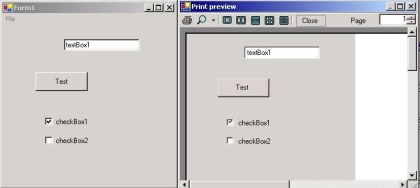
Figure 1 - A Form and the Print Preview of the same Form

It turns out that Microsoft provides the user with a helpful class that allows us to draw these elusive controls called ControlPaint.  This class is more like an API containing a list of static methods to help you paint the controls.  Below I listed the ones used in this article and their purpose:

Method in ControlPaint Description
DrawButton Draws a Button in the Graphics area.  Note this command will not draw any text or image on the button 
DrawCheckBox Draws a Checkbox in the Graphics area 
DrawBorder3D This will allow you to draw any 3D Border Side.  

Table 1 - Methods of ControlPaint used in this article

As we have discussed in previous printing articles on C# Corner, printing and drawing are accomplished almost the same way, by writing to a device context, or in the case of .NET, to a Graphics Object.  We are not going to go into detail on how to set up the printing components for calling the method that paints the controls to the printer.  Please refer to Printing in C# on the site to see how to set up the Print_Page event handler.

Our event handler for printing the form will call a method called, ironically, DrawForm, and perform all of the control painting here. Below is the method DrawForm in our Form class:

Listing 1 - Draw the Form and controls to the printer Graphics object

void DrawForm(Graphics g, int resX, int resY)
{
g.FillRectangle(
new SolidBrush(this.BackColor), 0, 0, this.Width, this.Height);
float scale = resX/ScreenResolution;
// Cycle through each control on the form and paint it to the printe
foreach (Control c in Controls)
{
// Get the time of the next control so we can unbox it
string strType = c.GetType ().ToString().Substring(c.GetType().ToString().LastIndexOf(".") + 1);
switch (strType)
{
case "Button": Button b = (Button)c;
// Use the ControlPaint method DrawButton in order to draw the button of the form
ControlPaint.DrawButton(g, ((Button)c).Left, ((Button)c).Top, ((Button)c).Width,((Button)c).Height, ButtonState.Normal);
// We also need to draw the text
g.DrawString(b.Text, b.Font, new SolidBrush( b.ForeColor), b.Left + b.Width/2 - g.MeasureString(b.Text,
b.Font).Width/2, b.Top + b.Height/2 - g.MeasureString("a", b.Font).Height/2,
new StringFormat());
break;
case "TextBox":TextBox t = (TextBox)c;
// Draw a text box by drawing a pushed in button and filling the rectangle with the background color and the text
// of the TextBox control
// First the sunken border
ControlPaint.DrawButton (g, t.Left, t.Top, t.Width, t.Height, ButtonState.Pushed );
// Then fill it with the background of the textbox
g.FillRectangle( new SolidBrush(t.BackColor), t.Left+1, t.Top + 1, t.Width+2,t.Height -2);
// Finally draw the string inside
g.DrawString(t.Text, t.Font , new SolidBrush(t.ForeColor), t.Left + 2,t.Top + t.Height/2 - g.MeasureString("a", t.Font).Height/2, new StringFormat());
break;
case "CheckBox":// We have a checkbox to paint, unbox it
CheckBox cb = (CheckBox)c;
// Use the DrawCheckBox command to draw a checkbox and pass the button state to paint it checked or unchecked
if (cb.Checked)
ControlPaint.DrawCheckBox(g, cb.Left, cb.Top, cb.Height/2, cb.Height/2,ButtonState.Checked);
else
ControlPaint.DrawCheckBox (g, cb.Left, cb.Top, cb.Height/2, cb.Height/2,ButtonState.Normal);
// Don't forget the checkbox text
g.DrawString(cb.Text, cb.Font, new SolidBrush(cb.ForeColor), cb.Right -cb.Height -g.MeasureString(cb.Text, cb.Font).Width, cb.Top, new StringFormat());
break;
}
}
}

The code above cycles through each control in the form and paints the control to the Graphics object.  The code takes advantage of the ControlPaint methods we mentioned above.  The DrawButton method is used to paint both the 3D button controls and the 3D text boxes.  The DrawCheckBox method of the ControlPaint class is used to draw the 3D checkbox.  In every case we need to draw the text separately from the control using the DrawString method of the Graphics Object.  We also needed to fill in the TextBox background with the FillRectangle method in the Graphics object.

Conclusion

Much more code can be added to this project to handle radio buttons, listviews, listboxes, and comboboxes.  The ControlPaint class contains  methods that can help you to paint other Window Form controls such as DrawScrollButton, DrawRadioButton, DrawGrid, DrawComboButton and DrawFocusRectangle.  If your form only contains edit boxes, checkboxes, and buttons, then this code may cover the bulk of your work.

Printing a windows form

Printing a Windows Form

by Les Smith and Brian Davis
Print this Article Discuss in Forums
VB6 had a PrintForm method, but .NET does not appear to provide the same functionality.  How can I print a Windows Form?

You can still print a form at run time from VB.NET or C#.  It's just not an included method in a form.  It takes just a little work and the use of an API.  This article will give you the code for printing a form at run-time.  

This code is a modification of the code found on the
Microsoft Site.  We have attempted to make some enhancements to the basic code provided by Microsoft.  We have extended the code to cause it to print the Title Bar and form borders, which the original code does not do.  This code has been tested on Windows 2000, but not on Windows XP.  Windows XP rounds the borders of the form Title Bar, so you can expect a minor change in the appearance of the printed form.

First, we created a simple form with a few controls, that do nothing, so that the form would have something on it.  We added a Print Form command button and called it btnPrintForm.

Place the following code in the declaractions section of your form.  This code sets up a PrintDocument component and declares the prototype for the BitBlt API call.  
The BitBlt function performs a bit-block transfer of the color data corresponding to a rectangle of pixels from the specified source device context into a destination device context. This API is used to capture the image of the form.


   ' create a printing component
   Private WithEvents pd As Printing.PrintDocument
  
' storage for form image
   Dim formImage As Bitmap
  
' create API prototype
   Private Declare Function BitBlt Lib "gdi32.dll" Alias _
      
"BitBlt" ( ByVal hdcDest As IntPtr, _
      
ByVal nXDest As Integer , ByVal nYDest As _
      
Integer, ByVal nWidth As Integer, _
      
ByVal nHeight As Integer , ByVal _
      hdcSrc
As IntPtr, ByVal nXSrc As Integer, _
      
ByVal nYSrc As Integer , _
      
ByVal dwRop As System.Int32) As Long

Next, place the following event handlers in the code window of the form.  The print command button is expected to have a Name of btnPrintForm.

   ' Callback from PrintDocument component to
   ' do the actual printing
   Private Sub pd_PrintPage( ByVal sender As Object, _
      
ByVal e As System.Drawing.Printing.PrintPageEventArgs) _
      
Handles pd.PrintPage
      e.Graphics.DrawImage(formImage, 100, 100)
  
End Sub

   Private Sub Form1_Load( ByVal sender As Object, _
    
ByVal e As System.EventArgs) Handles MyBase.Load
      
' create an instance of the PrintDocument component
      pd = New Printing.PrintDocument
      
Me.StartPosition = FormStartPosition.CenterScreen
  
End Sub

   Private Sub btnPrintForm_Click( ByVal sender As _
      System.Object,
ByVal e As System.EventArgs) _
      
Handles btnPrintForm.Click
      
' initiate the printdocument component
      GetFormImage()
      pd.Print()
  
End Sub

In the Form_Load event, we have created an instance of the PrintDocument object.  In the btnPrintForm_Click event, we call a method, shown below, to capture the image of the form and create a Bitmap of it.  Then we call the Print method of the PrintDocument object to initiate the printing of the form.  That method will call the pd_PrintPage event handler to request the data to be printed.  In this case the data to be printed is a Bitmap, created by the GetFormImage method.

The following method, GetFormImage, captures the screen image of the form.


   Private Sub GetFormImage()
      
Dim g As Graphics = Me. CreateGraphics()
      
Dim s As Size = Me .Size
      formImage =
New Bitmap(s.Width, s.Height, g)
      
Dim mg As Graphics = Graphics.FromImage(formImage)
      
Dim dc1 As IntPtr = g.GetHdc
      
Dim dc2 As IntPtr = mg.GetHdc
      ' added code to compute and capture the form
      ' title bar and borders

      
Dim widthDiff As Integer = _
         (
Me.Width - Me.ClientRectangle.Width)
      
Dim heightDiff As Integer = _
         (
Me.Height - Me.ClientRectangle.Height)
      
Dim borderSize As Integer = widthDiff \ 2
      
Dim heightTitleBar As Integer = heightDiff - borderSize
      BitBlt(dc2, 0, 0, _
        
Me.ClientRectangle.Width + widthDiff, _
        
Me.ClientRectangle.Height + heightDiff, dc1, _
         0 - borderSize, 0 - heightTitleBar, 13369376)

      g.ReleaseHdc(dc1)
      mg.ReleaseHdc(dc2)
  
End Sub

When we completed our form, ran the application, and clicked the Print Form button, it looked like the form shown in Figure 1.  Regardless of what your form looks like, if you place a Print Button or a Menu Option on it, and call the Click event handler shown above, your form should print properly.

Figure 1 - Demo Form.

FormPrint

(original source: http://www.knowdotnet.com/articles/printform.html )