Jan 2, 2008

Component cannot be created and AspCompact need to be TRUE

Usually in a vb6 to ASP.NET migration process, you will get this error.
Error: The component 'myCOM.COMClass' cannot be created. Apartment threaded components can only be created on pages with an <%@ Page aspcompat=true %> page directive.System.Web

The error above noted that we need to add page directive aspcompat = true because you are using COM interop with ASP.NET pages.

Just simply add the page directive "aspcompat=true" and it solved! :)

Exception : thread was being aborted / mscorlib

I got this message while debugging in asp.net 2.0 at this
Response.redirect("myABCfile.aspx")


I was thinking what's wrong with this line and you will get this exception if you throw the exception out to the display only.

Surfing around and I got the answer.
We have to understand how response.write or server.transfer work!

In ASP.NET, response.write and server.transfer will end the threading with response.end.
Thus, if we have a TRY...CATCH...END TRY within it, the TRY Thread will be aborted and ended suddenly and the exception will be caught.

We should make the response.redirect before or outside the catch at this point.

Usually, we will have a checking for session lost at the beginning of the page.

If String.IsNullOrEmpty(Session("user_id")) Then
Response.redirect("myLoginPage.aspx")
End if


This simple validation portion might not need to be inside Try Catch loop and you will be safe!

In addition, sometimes programming like to declare variable inside Try Catch loop too, and it is NOT necessary to do so.

A simple statement likes
Dim myString as string
is NOT necessary to be in Try Catch loop. :)

Jan 1, 2008

EthanLiew.com


Hi fellow readers, Elinkz - A "Serious" Developer Blog is now ethanliew.com

To be more "serious" ( with the quotes ), had registered ethanliew.com and started a nice domain for my self as 2008 's gift on 01/01/2008

Obviously Ethan Liew would be my name and .com would be my site domain name.

The three incremental dot aligned in forward 45 degree designed to bring me a better opportunity and expand further in what I am doing.


ethanliew.com is now live!

Feel free to drop me an email : info@ethanliew.com

Several changes had been made including my blog title, key word, theme, logo and design soon!

Thanks for your support !

Happy New Year 2008 At Genting, Malaysia


Happy New Year 2008 to all my readers!

Well, I am celebrating New Year 2008 at Genting (now 1:52am 01/01/2008)
I am writing this blog at Starbuck beside Genting Resort.

Last year, just now, 2007 eve, was entertaining Jacky Wu & friends at Star Of Arena, Genting.
Out of my expectation, not too excited because Jacky ( my idol ) not creating much more jokes (as usual).

Yet, we have a wonderful eve enjoying fireworks in front of Genting Resort.

Here by to wish you all have a good planning at the first day of year and success in doing in year 2008!

Dec 30, 2007

Download Gmail To Outlook

I tried to add Gmail POP manually ( without referring any information ) to outlook and create several issues such as duplicated outlook email and loading all my Gmail ( about 3Gb )... My goodness! Because I checked "Leave a copy of message to mail server"

So here we have a better way to do it!

Steps:
1. Login you Gmail > Settings ( Right Top )


2. You can refer the settings above, depend on your needs.
a. Forwarding:
Disable forwarding because I am not going to forward my gmail to other account.

b. POP Download:
Probably you will need the second check box if your Gmail message is large!
Second option will only retrieve the new Gmail from the time you set it.

c. Choose 'Archive Gmail copy' . This option will help you leave a copy into your 'ALL Mail' in your Gmail. Thus, NO NEED to check the outlook 'Leave a message on server' option.

You should read the configuration part to get further information.

For fast settings, refer here:
On your outlook

Account Type: POP3
Incoming mail server: pop.gmail.com
Outgoing mail server: smtp.gmail.com
User Name: your-gmail-account ( I prefer full gmail rather than ID )
Password: your-gmail-password
Check the 'Require logon using Secure Password Authentication (SPA)


Outgoing SMTP


Delivry settings ( no need to check it )

You may test your email by sending it to your self :)

Thank Gmail for POP3 service !!

Recommended Reading

How To Hide Outlook From Taskbar


Did you feel your task bar full of application?

Probably you have outlook turning on all the time to receive email.

So, to hide or remove or get rid of it?

Here we go...

Steps:


1. Right your outlook icon on your notification area ( usually right bottom )
2. Tick the "Hide When Minimized"
3. That's all :)

Recommended Reading

SVN With Visual Studio 2008

How To Get SourceSafe-Like Features for SVN on Visual Studio 2008 ?

Sometimes, just not too convenient to commit or check modification for files in windows explorer. I need to switch from applications to applications, is a bit troublesm.

It takes me about 1 month to find the best solution at the moment!
( I mean without paying any penny )

Currently I am using AnkhSVN and the settings files below.
For Difference Checking and Merging process, I am using WinMerge and KDiff3.
All of them integrated with Visual Studio IDE too.

Let's see what can we do with this settings solution!
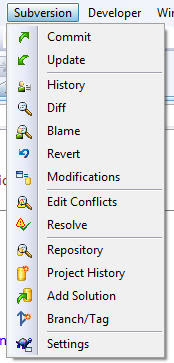
Menu Bar
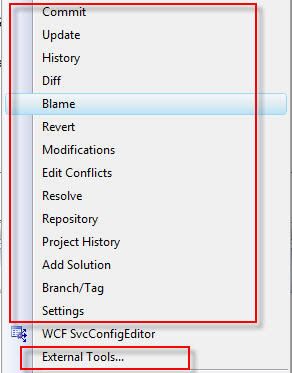

External Tools Menu
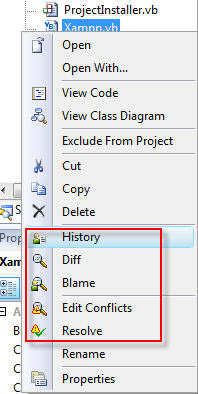

Most Wanted Right Click Menu
( When you select file, folder, project or solution, you will get different menu )
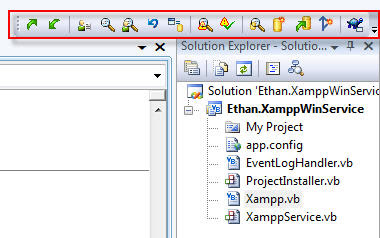

Most Wanted Menu Toolbar

So , for those who like the simplest way, can refer the method below.

Click To Download The Solution For VS2008.

Click To Download The Solution For VS2005.


Steps:

Copy settings file to your visual studio settings folder
1. 'your-domain-user-settings-folder'\Documents\Visual Studio 2008\Settings
2. paste file
a. SubversionMenuToolbarContextsVS2008.settings
(Visual Studio do not allow long file names!!)

Install registry file
(May be you should export and backup your registry first )
1. Copy to any folder of your local machine and run/install this file
a. SubversionMenuToolbarContextsVS2008.vbs

Load settings file to Visual Studio
1. Visual Studio 2008 > Tools > Import and Export Settings
2. Choose Yes, save my current settings and click next button
3. You notice exclaimation mark on the check box.
Expand it and CHECK both checkbox
a. Command Window Aliases
b. External Tool List
4. Click finish and your will get this message.
"Your settings were successfully imported from SubversionMenuToolbarContextsVS2008.vssettings.
"

To Show SVN Tortoise Toolbar
1. View > Toolbars > Subversion

You are done!

Resource modified to suit local development from
http://garrys-brain.blogspot.com/2007/07/tortoisesvn-and-visual-studio.html

Thanks Garrys!


If you want more features, try

a. AnkhSVN at http://ankhsvn.tigris.org/

b. WinMerge at http://winmerge.org/

c. KDiff3 at http://kdiff3.sourceforge.net/

I will write more about it soon!


Related Info: